You have a camera roll full of memories or a folder of digital art, and you want to display them on your laptop lid. It is frustrating to see these images stuck behind a screen when they could be personalizing your device.
To turn pictures into laptop stickers, select a high-resolution image of at least 300 DPI, create a vector cutline around the subject, add a bleed area to prevent white edges, choose a waterproof vinyl material, and cut the shape using a digital die-cutting machine.
I see many people try to print stickers at home using standard settings. They peel the paper off the backing, and the image looks blurry. The edges are jagged because they used scissors. The ink smears the first time they touch it with a damp hand. You do not want a cheap-looking sticker on your expensive laptop. You need to follow a specific production process. Here are the steps I use in my factory to turn a digital photo into a physical product.
Use a high-resolution photo
You zoom in on your printed sticker and realize the image looks like a collection of colored blocks rather than a sharp photo.
Always start with an image file that has a resolution of at least 300 DPI (dots per inch) at the actual print size. Avoid using photos downloaded from social media apps like Facebook or WhatsApp, as these platforms compress files and reduce quality, leading to pixelated prints.
Quality inputs equal quality outputs. In my line of work, we have a saying: "Garbage in, garbage out." If you send me a low-quality screenshot from your phone, I cannot make it look sharp, no matter how good my printers are. Most images on your computer screen are 72 DPI. This looks fine on a monitor because screens emit light. But when you print on paper or vinyl, you need more data. You need 300 DPI.
I often have to reject orders because the customer took a screenshot of a logo on Instagram. When we blow that up to a 3-inch sticker, the edges look fuzzy. Before you start designing, check your file properties. If the file size is only 50KB, it is likely too small. You want a file that is several megabytes. If you are a digital artist, always set your canvas to 300 DPI or higher before you draw a single line. This ensures the ink dots are packed tightly together on the vinyl, creating a crisp, professional look.
Create a custom shape and cutline
You want your sticker to hug the outline of your dog or your logo, but you end up with a boring white square that ruins the aesthetic.
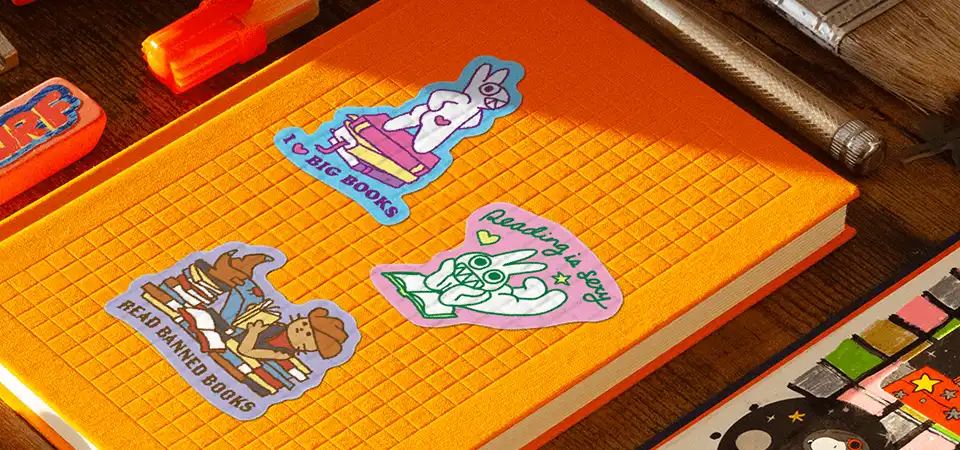
Use vector design software like Adobe Illustrator to trace the edge of your subject and create a specific "cutline" layer. This pink or magenta path tells the cutting machine exactly where the blade should travel, allowing for intricate die-cut shapes rather than standard rectangles.
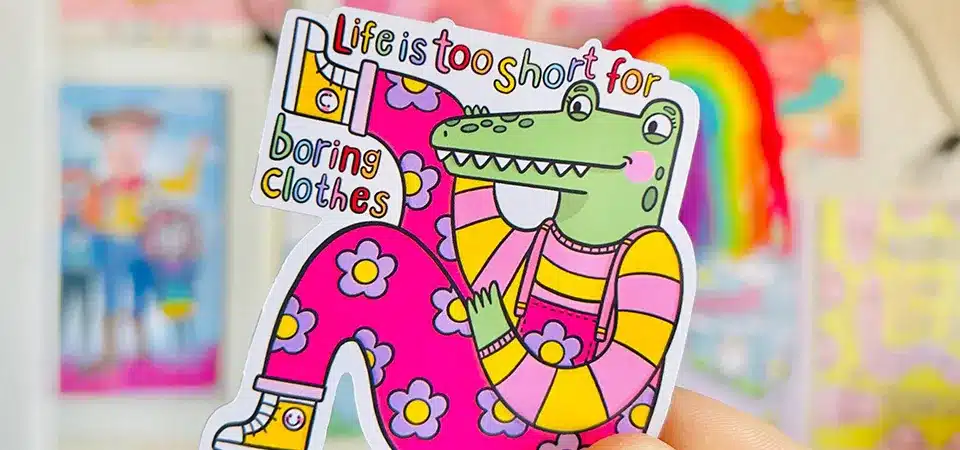
The difference between a home-made sticker and a pro sticker is usually the shape. A square sticker looks like a shipping label. A custom shape looks like art. To get that custom shape, you need to tell the machine where to cut. We call this the "Cutline."
In the factory, we use vector paths. Unlike a photo, which is made of pixels, a vector is a mathematical line. It does not lose quality when you resize it. You need to draw a line around your photo subject. I recommend leaving a small border (about 2mm) of white space or background color between the image and the cutline. This "offset" makes the sticker look grounded. If you put the cutline right on the edge of the image, any slight error in cutting will look terrible. The machine needs a clear, single path to follow. Do not make the line too complex with tiny jagged edges, or the vinyl will tear when you peel it.
| Cut Style | Description | Best For |
|---|---|---|
| Die Cut | Cut through the vinyl and the backing paper | Single handouts, gifts |
| Kiss Cut | Cut through vinyl only, backing stays square | Sheet of multiple stickers |
| Standard Shape | Circle, Square, Oval | Logos, Seals |
Add a bleed
You printed your sticker and cut it out, but there is an ugly sliver of white paper on one side where the blade missed the ink.
Add a "bleed" area by extending your background color or image at least 2mm to 3mm beyond the cutline. This safety margin accounts for slight mechanical shifts in the cutting blade, ensuring the color runs all the way to the edge of the finished sticker.
This is the number one technical mistake I fix for clients. Machines are accurate, but they represent physical mechanics. The paper moves. The blade vibrates. We allow for a variance of about 0.5mm to 1mm in any direction. If your color stops exactly at the cutline, and the blade shifts 0.5mm into the white paper, your sticker will have a white stripe on one edge. It looks like a mistake.
To fix this, you must "Bleed" the artwork. This means you stretch the background color past the cutline. If you have a round blue logo, make the blue circle 3mm wider than the cutline. When the machine cuts, it will cut through the blue color. If it shifts slightly left or right, it is still cutting through blue. The result is a perfect edge. If you are using a photo, you might need to use Photoshop to clone-stamp the background to extend it. Never put important text or faces right next to the cutline. Keep them in the "Safety Zone," which is 2mm inside the cutline.
Select an appropriate size
You order a sticker and it arrives so small that nobody can read the text, or so big that it hangs off the edge of your laptop.
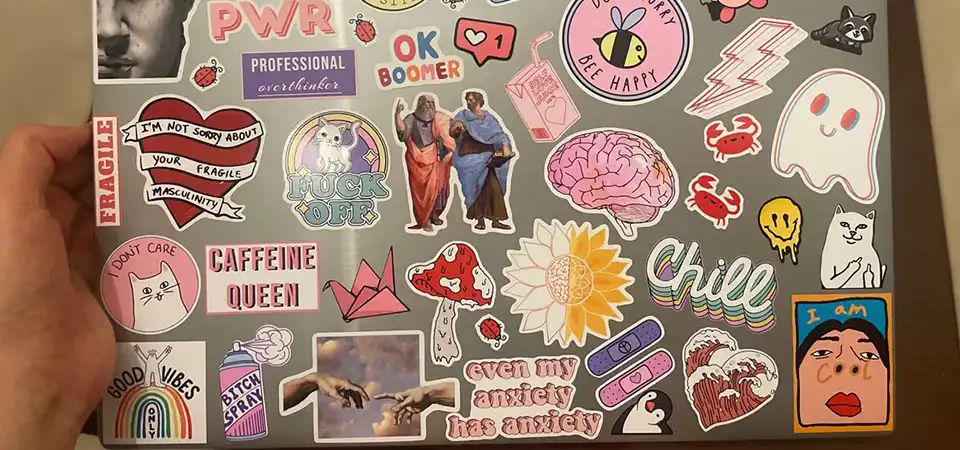
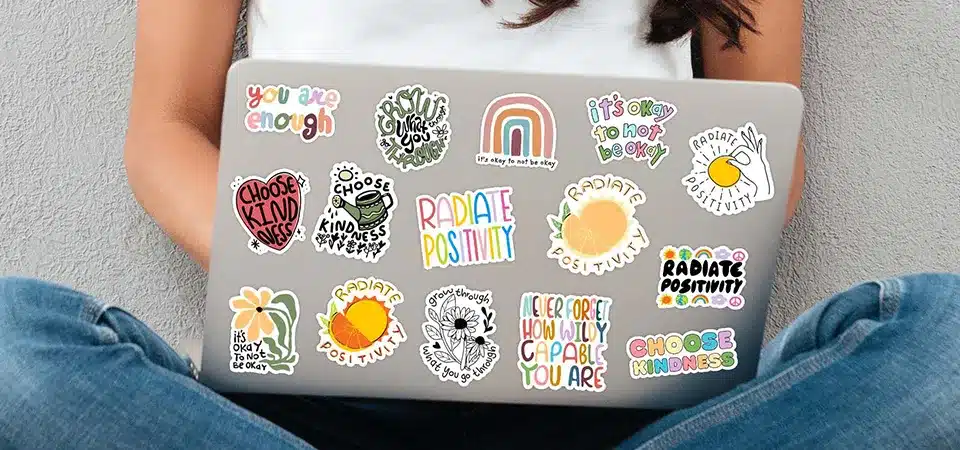
Measure the available surfacing on your laptop lid to determine the correct scale; typically, a width of 3 to 4 inches is ideal for a main visual, while 2-inch stickers work best for filling gaps in a collage arrangement.

Size changes the function of a sticker. A laptop lid is a limited canvas. Most of the time, the Apple logo or brand logo sits in the middle. You have to work around it.
I advise clients to print their design on a regular piece of paper first. Cut it out with scissors. Tape it to your laptop. Does it look dominant? Does it look like a speck of dust? This is the physical proof.
- 2 Inches (5 cm): Good for simple icons or filler stickers. Too small for photos with faces.
- 3 Inches (7.5 cm): The industry standard. Big enough to see details, small enough to fit 5 or 6 on a lid.
- 4 Inches (10 cm): This is a "Hero" sticker. It will be the main focus. Only use this for very high-res photos.
Remember that a laptop sticker is viewed from a few feet away. If you put tiny text on a 2-inch sticker, nobody will read it. For photos, the simpler the subject, the smaller you can go. If it is a group photo of ten people, do not print it 2 inches wide. It will look like a blurry blob.
Print and cut them
You have the perfect file, but now you need to figure out how to get it from the screen to the vinyl without making a mess.
Print your image on high-quality printable vinyl using an inkjet printer, let the ink dry completely, and then use a consumer cutting machine like a Cricut or Silhouette to trace your cutlines. This combination yields a result close to professional manufacturing.
If you are doing this at home (DIY), specific tools make a difference. Do not use paper lables. Paper absorbs moisture and rubs off. Buy "Printable Vinyl" sheets online. Most home inkjet printers handle this material well.
After you print, you have a crucial step: Lamination. The ink from a home printer is not waterproof. If you touch it with sweat, it smears. You need to buy self-adhesive laminate sheets. You peel the clear sheet and stick it over your printed vinyl. Smooth it out with a ruler to remove bubbles.
Now, for the cutting. Do not use scissors. Scissors leave sharp angles that catch on things and peel up. Use a machine like a Cricut. These machines have optical sensors (Registration Marks). The machine scans the printed page, finds the corner marks, and then cuts your vector line perfectly. This gives you that smooth, rounded edge that feels professional to the touch.
Or let us do the work!
You realize that buying vinyl, laminate, and a cutting machine is expensive and time-consuming for just a handful of stickers.
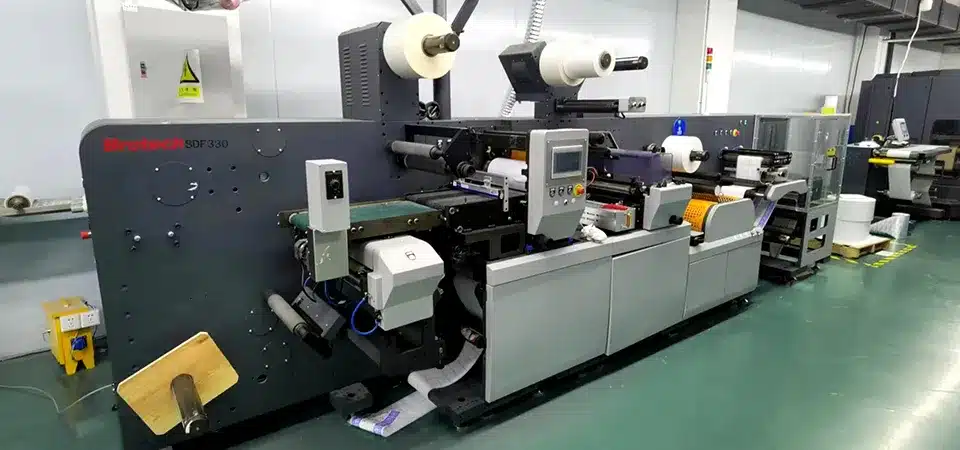
Let a professional manufacturer handle the production to save time and guarantee quality; we use industrial solvent inks, UV protective laminates, and precise laser cutters to create stickers that are durable, waterproof, and perfectly shaped.
This is where I come in. Sticking photos on a laptop is a commitment. You want that sticker to last for three years, not three weeks. Home printers use water-based ink. My factory uses solvent or UV-cured ink. My ink bites into the plastic. It does not fade in the sun.
When you send us a file, my team checks the resolution. We fix the cutlines. We add the bleed if you forgot it. We use heavy-duty vinyl that is thick enough to hide the scratches on your laptop lid. We also die-cut the shapes with laser precision. The edges are sealed, not open paper fibers.
We also offer finishes you cannot do at home easily, like holographic effects, matte soft-touch coatings, or transparent backgrounds. If you want 50 stickers for your friends, or even just one high-quality sample, outsourcing removes the headache. You just upload the picture, and a week later, a perfect waterproof decal arrives at your door.
Conclusion
Turning a picture into a laptop sticker requires a clear 300 DPI image, a defined cutline with bleed, and the right vinyl material; while you can print and cut at home, professional manufacturing offers the best durability against heat, scratches, and daily wear.