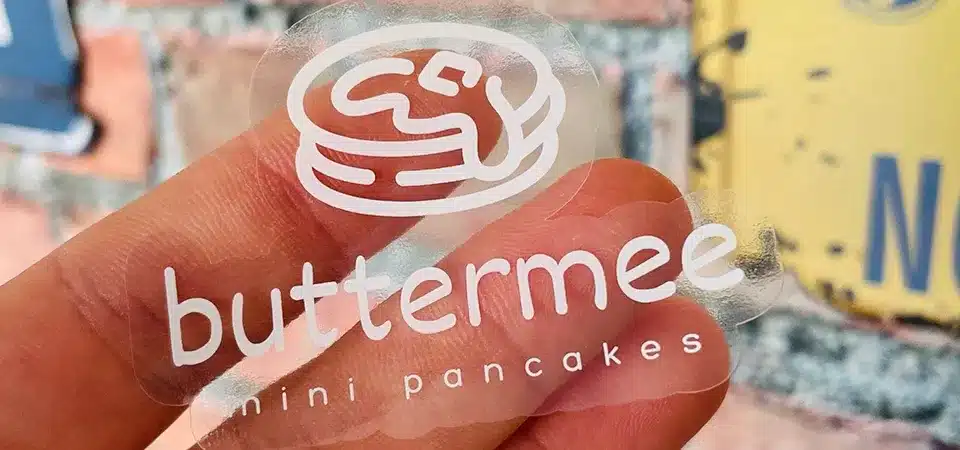
Your clear stickers look disappointingly transparent and washed out. Wasting expensive paper on unprofessional results is frustrating and bad for your brand image. Let's fix that.
To print on clear sticker paper, use the right printer and ink combination. For inkjet, use pigment ink on inkjet-specific clear paper. For laser, use laser-safe sheets. For professional results with opaque colors, you need a printer that can print a white ink base layer.
I've spent years perfecting the art of printing on transparent materials in my shop. The biggest hurdle is the lack of a white background, which can make your colors look weak and see-through. But don't worry, getting that professional, "no-label" look is completely achievable with the right setup. I'm going to walk you through the exact steps I use, from choosing a printer to the final cut, so you can get results you're proud of.
What is clear sticker paper?
You see clear sticker paper advertised, but the different types are confusing. Choosing the wrong one can lead to melted sheets in your printer or smeared, useless labels.
Clear sticker paper is a transparent, self-adhesive material, typically made from a plastic film like polyester (PET). It's designed to create a "no-label" look on surfaces like glass or plastic. Different types exist for inkjet and laser printers.
Clear sticker paper isn't paper at all. It's usually a type of plastic film, most often Polyethylene Terephthalate, or PET. Its key feature is that it's non-porous, meaning it doesn't absorb ink like regular paper does. The ink has to sit on top of the surface and dry. This is why you must get the right type for your printer. An inkjet version has a special top coating designed to grab and hold onto liquid ink droplets. A laser version is engineered to withstand the high heat of the fuser unit without melting. Using the wrong one can be disastrous—I've seen inkjet sheets melt in laser printers, causing a sticky, expensive mess. Here’s a simple breakdown:
| Paper Type | Material Base | How it Works | Best For |
|---|---|---|---|
| Inkjet Clear Paper | PET with a receptive coating | The top layer absorbs and locks in ink droplets. | Home/office inkjet printers, crafts. |
| Laser Clear Paper | Heat-stabilized PET | The material is designed to handle high heat so toner can fuse to the surface. | Home/office laser printers. |
| Professional Vinyl/PET | Untreated Vinyl or PET | Designed for solvent, eco-solvent, or UV inks. | Commercial printing, product labels. |
Step 1: How do you choose the right printer?
You have a printer, but you're not sure if it works with clear sticker paper. You worry about wasting money on materials your machine will just jam or ruin.
Inkjet printers with pigment inks work well for DIY projects. Laser printers are also good but require laser-specific sheets. For the best quality with opaque colors, professional UV printers are necessary as they can print a layer of white ink first.
Choosing your printer is the most critical step. The type of printer you use dictates the material, the ink, and the final quality. In my business, we have all three types because they serve different purposes. Let's break down your options so you can choose wisely.
Inkjet printers
These are common in homes and small offices and can produce good results. But, as I mentioned, you have to be careful. They work by spraying tiny droplets of liquid ink. Because clear paper is non-porous, the ink sits on a special top coating. The quality depends heavily on this coating and the ink itself. For DIY projects, a good inkjet is an accessible starting point.
Laser printers
Laser printers use heat to fuse a plastic powder (toner) onto the page. This process can be great for clear stickers because the toner is naturally more durable. The absolute rule here is you must use sheets labeled "for laser printers." If you don't, the film can melt inside your printer's fuser unit, causing serious damage. I learned this the hard way years ago, and it's a costly mistake.
Professional digital printing (UV or solvent printers)
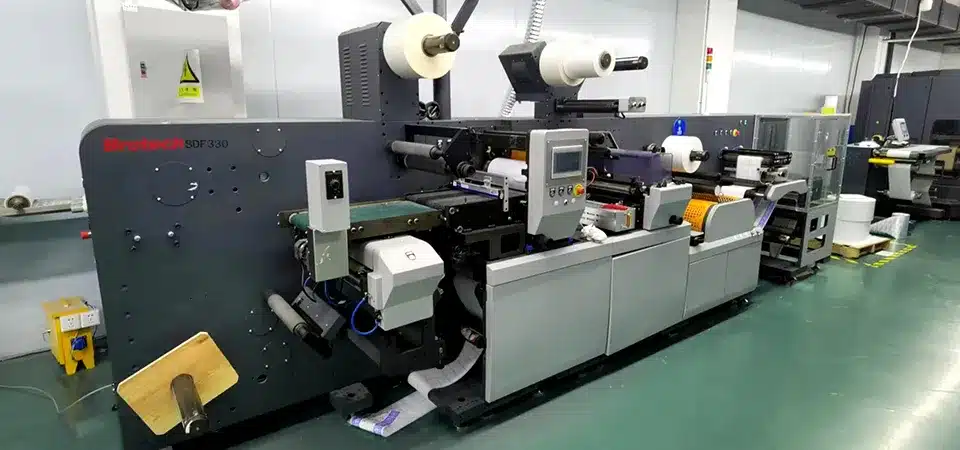
This is where the magic happens. Professional printers like the UV printers we use in my factory are the industry standard. Their biggest advantage is the ability to print white ink. We print a layer of opaque white ink first, which acts as a primer. Then, we print the colors on top of the white. This makes your colors pop and look fully opaque, not transparent. This is how you get that retail-quality, professional look.
Step 2: How do you pick the right ink?
Your beautiful print smears with the slightest touch or drop of water. You're worried your stickers will look terrible after just one day of use on a product.
For inkjet, use pigment-based inks, not dye-based inks. Pigment inks are naturally water-resistant and UV-stable. For laser printers, the toner itself is the "ink," which is a durable plastic powder. For professional results, use UV-cured or solvent inks.
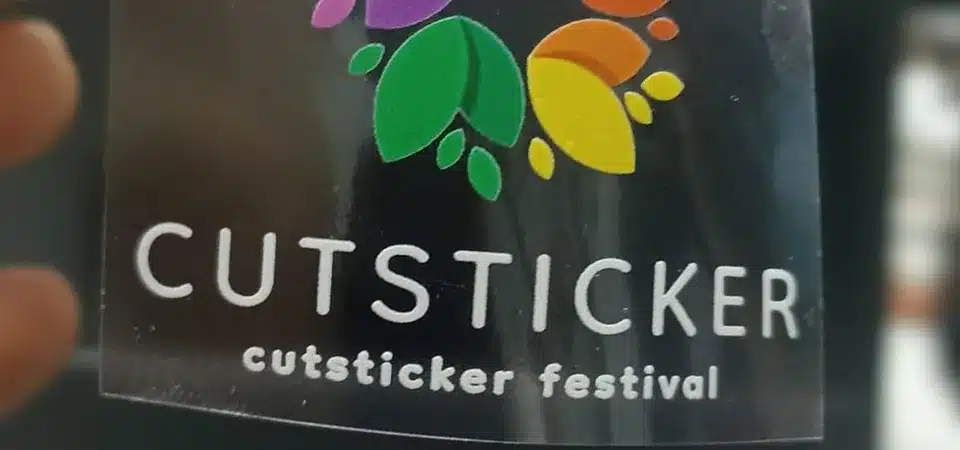
The ink is just as important as the printer. Getting this wrong is the most common reason for smearing and fading. The non-porous surface of clear sticker paper is very picky about what will stick to it permanently. For inkjet printers, there are two main types of ink, and you must know which one you have. The difference is durability.
- Dye-based Ink: This is the standard in most cheap home printers. The colors are vibrant, but the ink is water-soluble. It will run and smear instantly if it gets wet. It is not suitable for stickers that need to be durable.
- Pigment-based Ink: This ink contains solid particles of pigment suspended in liquid. It's naturally archival, water-resistant, and UV-stable. When it dries on the coated clear paper, it's far more durable. I always tell my DIY friends to invest in a printer that uses pigment inks if they are serious about stickers.
For laser printers, the "ink" is actually toner, a fine plastic powder. The printer's heat fuses this powder directly onto the sticker sheet, making it naturally water-resistant and very durable from the start. Professional UV inks are even better, as they are instantly cured by ultraviolet light into a tough, solid layer.
Step 3: How do you adjust printer settings?
You hit "print" using the default settings and the ink beads up or smears. You've wasted another expensive sheet and are getting frustrated with the process.
You must tell your printer it's not using plain paper. In your printer settings, change the paper type to a specialty option like "Glossy," "Photo," "Transparency," or "Other Coated." Also, set the print quality to "High" or "Best."
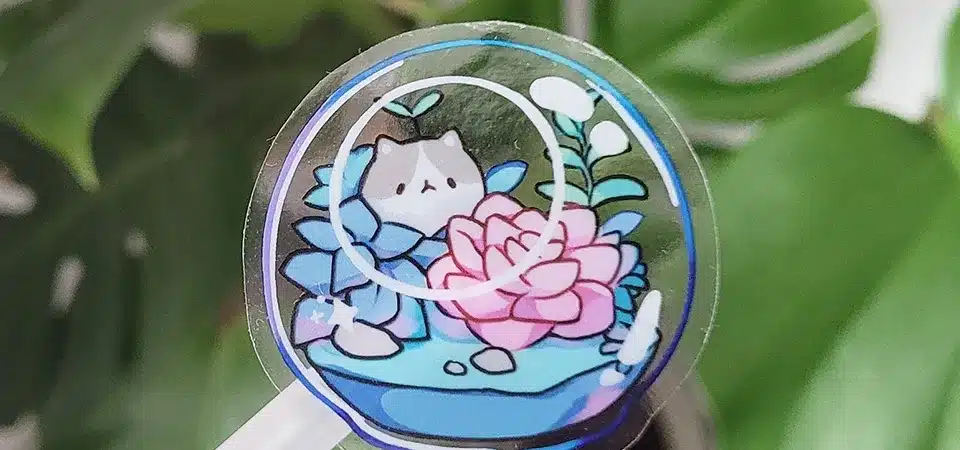
This step is so simple but so often overlooked. Your printer's default setting is for plain, porous paper. It prints fast and uses less ink. When you select a specialty paper setting, the printer makes two crucial adjustments. First, it slows down the printing speed. This allows the ink to be placed more precisely and gives it a moment to set on the non-porous surface. Second, it often uses a different ink volume and dot pattern optimized for a glossy finish. This prevents the ink from pooling or beading up. In my shop, before we run any job, we create a specific profile for each material. For you at home, this means running a small test print every time. Print a small part of your design on a corner of the sheet and check it before you commit to printing the full page. This five-minute check can save you a lot of money and headaches.
Step 4: How do you print and dry your stickers?
You've printed the sheet perfectly, but you touch it too soon and a big smudge ruins the best sticker. Now you have to wait, but you're not sure how long.
After printing, handle the sheet by the edges and place it on a flat surface to dry. Inkjet prints can take anywhere from a few minutes to an hour to dry completely. Do not stack them. Laser prints are ready immediately.
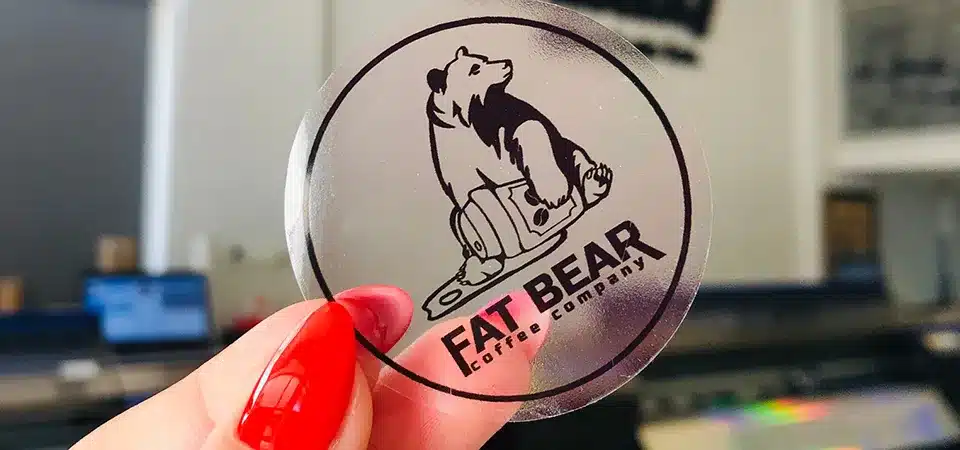
Patience is a virtue, especially with inkjet printing on clear paper. Since the ink isn't absorbed, it needs to air dry completely. The drying time can change based on the humidity in your room and how much ink your design used. Dark, saturated colors will take much longer to dry than light colors. I have a rule in my shop: if you think it's dry, wait another 30 minutes. I once rushed a small batch for a friend and stacked the sheets too early. The pressure caused the still-soft ink to transfer between the sheets, ruining the entire lot. It was a painful lesson in patience. Laser prints are different. The toner is fused with heat, so the print is dry and durable the second it comes out of the machine. This is a big advantage for speed. No matter which printer you use, always handle the fresh sheets by the very edges to avoid fingerprints on the surface.
Step 5: How do you cut and apply your transparent stickers?
Your stickers are printed and dry, but now you need to cut them out. You're trying to use scissors, but the cuts are uneven and look unprofessional.
For precise custom shapes, use a digital cutting machine like a Cricut or Silhouette. For extra durability, apply a clear laminate over the print before cutting. When applying the sticker, start from the center and smooth outwards to prevent bubbles.
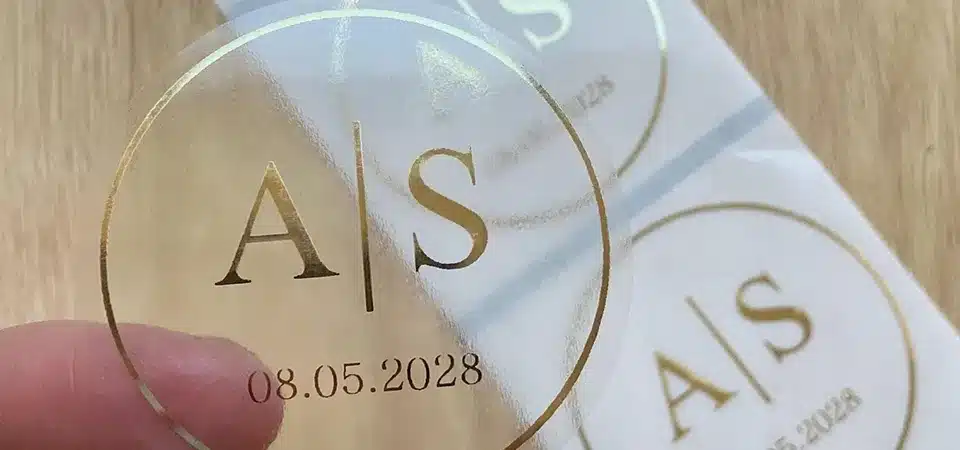
The final steps are what give your sticker a professional finish. While you can cut stickers by hand with scissors or a craft knife, it’s nearly impossible to get a clean, consistent edge. A digital cutting machine is one of the best investments you can make. It reads a digital cutline and uses a tiny blade to perfectly trace your design.
For ultimate durability, especially for products that will be handled a lot or exposed to the elements, I always recommend a laminate layer. This is a thin, clear adhesive film that you apply over the top of your printed sheet. A laminate acts like armor for your ink, protecting it from scratches, UV rays, and moisture. In my professional work, every single sticker we produce is laminated. After laminating, you can then feed the sheet into your cutting machine. When it's time to apply, clean the surface first. Peel off the backing, and press the sticker down from the center, smoothing your way to the edges with your finger or a small squeegee. This pushes any air out and prevents bubbles.
What about troubleshooting and pro tips?
Your colors look weak, or the ink is still smudging. You've followed the steps, but something is still wrong, and you're not sure what to fix.
If colors are transparent, you need a white underprint from a professional printer. If ink smudges, you used the wrong ink or didn't let it dry. Always test on a small piece first, and consider designing specifically for transparency.
Even with years of experience, things can still go wrong. The key is to know how to diagnose the problem. Here are the most common issues I see and my pro tips for solving them.
Common Problems & Solutions:
- Problem: My colors look faded and transparent.
- Solution: This is the nature of printing on a clear background without a white ink layer. The only way to get fully opaque colors is to use a professional UV printer that can print a white base. For home printers, your best bet is to use very dark and saturated colors like black, dark blue, or deep red, as they will show up better than light colors like yellow or pink.
- Problem: The ink smudges, even after drying.
- Solution: This is almost always an ink or paper mismatch. You are likely using dye-based ink on paper that needs pigment ink, or you used an inkjet sheet in a laser printer. Double-check that your paper is compatible with your specific printer and ink type.
My Personal Pro-Tips:
- Laminate Everything: I can't stress this enough. Applying a clear laminate over your prints before cutting is the single best thing you can do to protect them.
- Design for the Medium: Don't just take any design and expect it to look good on clear material. Designs with bold lines and high contrast work best. Delicate, low-contrast watercolors, for example, tend to disappear.
- Always Test a Small Batch: Before you print 50 sheets, print ONE. Cut it, apply it, and test it. This simple habit will save you from wasting a huge amount of expensive material.
Conclusion
Printing on clear sticker paper requires matching your printer, ink, and paper. For pro results with opaque colors, a white ink layer is essential. Always test first.