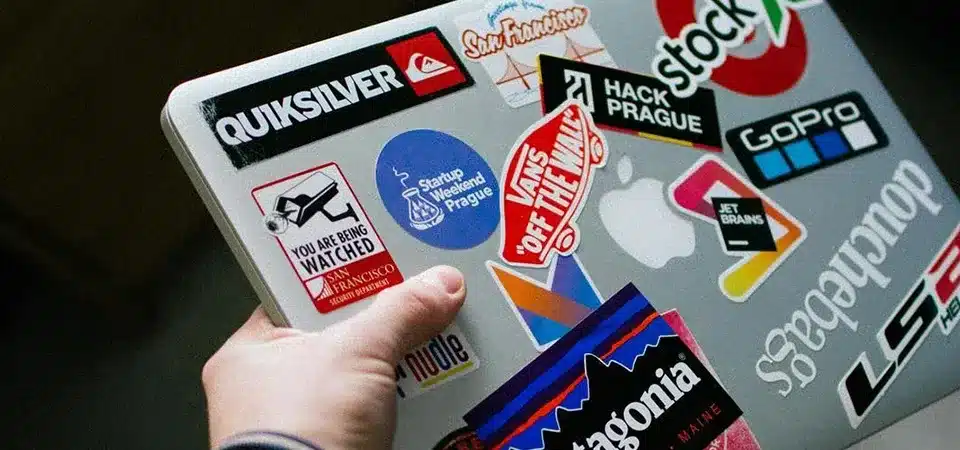
You finally bought a collection of stickers that represents your personality perfectly, but now you are hesitating to put them on your expensive laptop. It is stressful to think that one bad placement or a trapped air bubble could ruin the look of your machine forever.
To apply laptop stickers correctly, clean the surface with an alcohol wipe to remove oil, then peel the backing and apply the sticker from the center outward to push out air. For the best arrangement, place larger "hero" stickers first, fill gaps with smaller ones, and ensure all designs face upright when the laptop lid is open.
In my years of manufacturing stickers, I have seen customers ruin high-quality vinyl simply because they rushed the application. They treat it like a race. I always tell them: applying a sticker is an act of commitment. Once that adhesive bonds, moving it is difficult. A well-stickered laptop is a piece of art, but a poorly stickered one just looks messy. You need a plan before you peel that paper backing.
4 Things to look out for when putting stickers on a laptop
You might think sticking a label on a computer is common sense, but the difference between a sticker that lasts three years and one that peels in three weeks is in the preparation.
Before applying, ensure the surface is completely free of finger oils, keep a steady hand for alignment, apply firm pressure to activate the adhesive, and smooth out materials immediately to prevent air bubbles. Neglecting these steps leads to lifting edges and a shorter lifespan for your stickers.
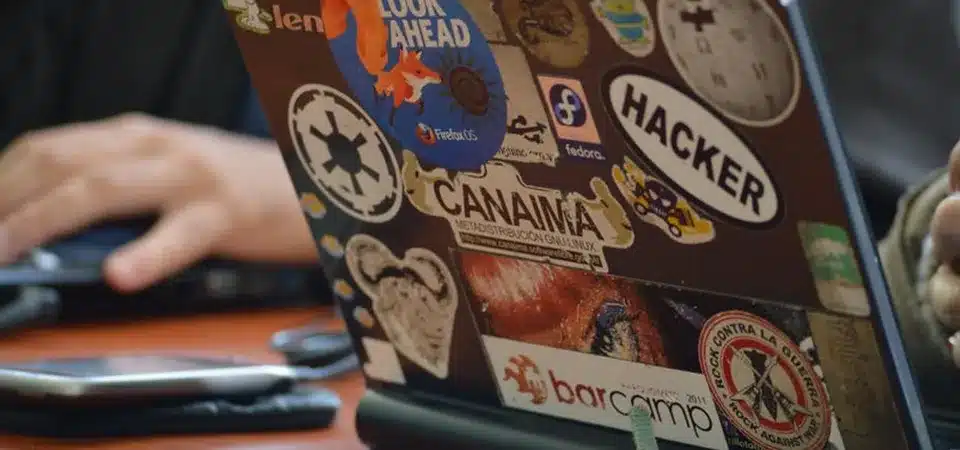
I treat sticker application like a small manufacturing process. In our factory, we never apply a label to a dirty surface, and you shouldn't either. Here is the breakdown of the four critical steps I recommend to every client.
1. Start with a clean surface
This is the most common mistake. Your laptop lid might look clean, but it is covered in invisible oils from your fingers. Adhesive hates oil. If you stick vinyl onto an oily spot, the chemical bond fails, and the edges will curl up within a month. I recommend using a simple isopropyl alcohol wipe or a microfiber cloth with a little bit of lens cleaner. Wipe it down and let it dry completely. Do not use standard household cleaners, as they often leave a residue behind.
2. Keep a steady hand
Once the backing is off, you have one shot at perfect alignment. Hover the sticker over the spot before you touch it down. I often use a technique called the "hinge method" for large stickers: use a piece of masking tape to hold the sticker in place, then peel the backing from underneath. This guarantees it lands exactly where you want it.
3. Sticker glue is pressure-sensitive
Here is a technical fact many people don't know: Vinyl adhesive is pressure-activated. It is not like superglue that grabs instantly. When you lightly place the sticker, the bond is weak. To get the maximum hold, you must press down firmly. I tell my customers to use their thumb or a credit card (wrapped in a cloth) to rub the sticker firmly after placing it. This pressure bursts the microscopic adhesive capsules and creates a permanent bond with the casing.
4. Air bubbles can form
Nothing ruins a design like a big blister in the middle of it. Bubbles happen when you slap the sticker down flat all at once. The correct technique is to touch the center of the sticker down first, then use your finger to sweep outward towards the edges. This pushes the air out as the sticker makes contact. If you do get a bubble, don't peel it up. Just take a sewing needle, poke a tiny hole in the bubble, and press the air out.
The best places to put stickers on your laptop
You have a pile of stickers, but you are not sure which parts of the computer are safe to cover and which parts will show them off best.
The most effective place for laptop stickers is the back of the lid (the A-shell), as it offers a large, flat canvas that acts as a billboard when the device is in use. The palm rest area is also popular for smaller stickers, though they are subject to more wear and friction from your wrists.
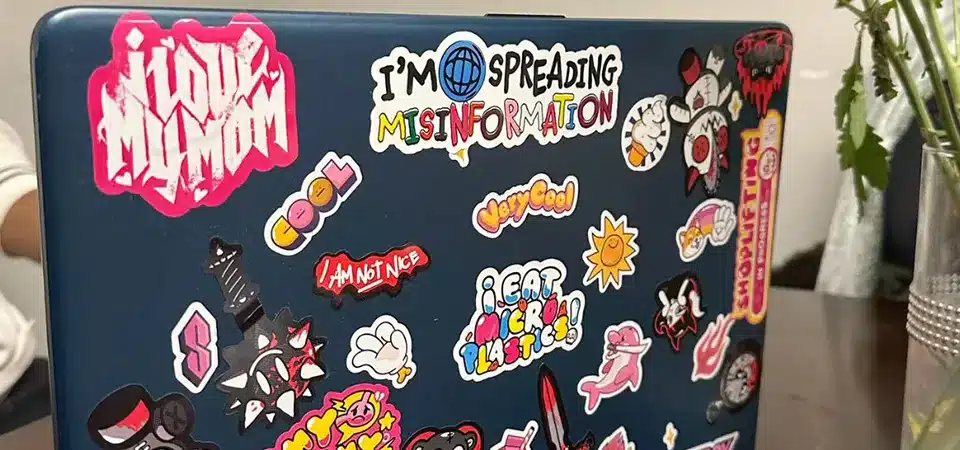
When I advise clients on sticker placement, I ask them to think about visibility and wear. The lid is the "safe zone." It is a large, flat area that doesn't get touched often, meaning your stickers will stay pristine for years. It is also the face of the laptop that other people see when you are working in a coffee shop.
The palm rest (the area next to your trackpad) is a secondary option, but it comes with a warning. This area faces high friction. Your wrists rub against it constantly, and the oils from your skin degrade the ink and laminate over time. If you put stickers here, expect them to fade or peel faster. Also, ensure the stickers here are perfectly flat; if they have raised textures, they will irritate your wrists while typing.
Where you should not put your laptop stickers
You might be tempted to cover every inch of your device to get that "sticker bomb" look, but covering certain functional areas can damage your machine.
Avoid placing stickers on ventilation grilles, screen hinges, the trackpad, or over screw holes. Blocking vents can cause the laptop to overheat, stickers on hinges will peel due to movement, and covering screws makes future repairs or battery replacements difficult.

I have seen laptops come into repair shops that were ruined because the owner covered the exhaust vents with vinyl. Laptops need to breathe. If you cover the vents, heat builds up, and you can fry your processor.
Here is a quick guide on the "No-Go Zones":
| Area | Why to Avoid | Result |
|---|---|---|
| Vents/Fan Exits | Blocks airflow | Overheating, system failure |
| Hinges | Constant movement | Sticker lifts and peels |
| Trackpad | Capacitive touch surface | Mouse won't work / weird friction |
| Bottom Case | High friction with tables | Scratches, dirt buildup |
| Screen Bezel | Too thin, often rubber | Looks cluttered, peels easily |
Also, avoid the very edge of the laptop lid. Stickers that hang over the edge or sit right on the lip will catch on your laptop sleeve every time you take it in or out. This friction will eventually rip the sticker off. Leave a 3mm border around the edge of your laptop.
How to arrange laptop stickers
You want your laptop to look curated and artistic, not like a messy public restroom wall.
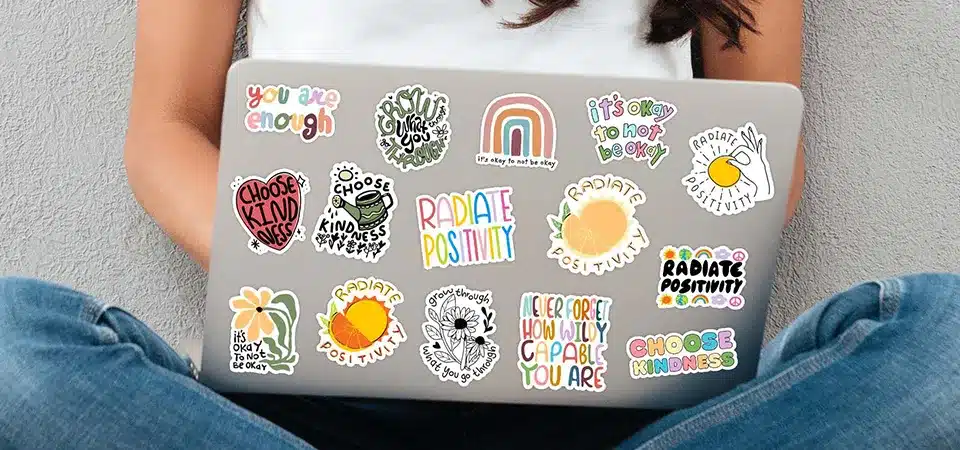
To arrange stickers aesthetically, group them by color, size, or shape to create visual balance before peeling the backing. Start with your largest "anchor" stickers in the center or corners, and use smaller designs to fill the negative space, creating a cohesive collage rather than a chaotic clutter.
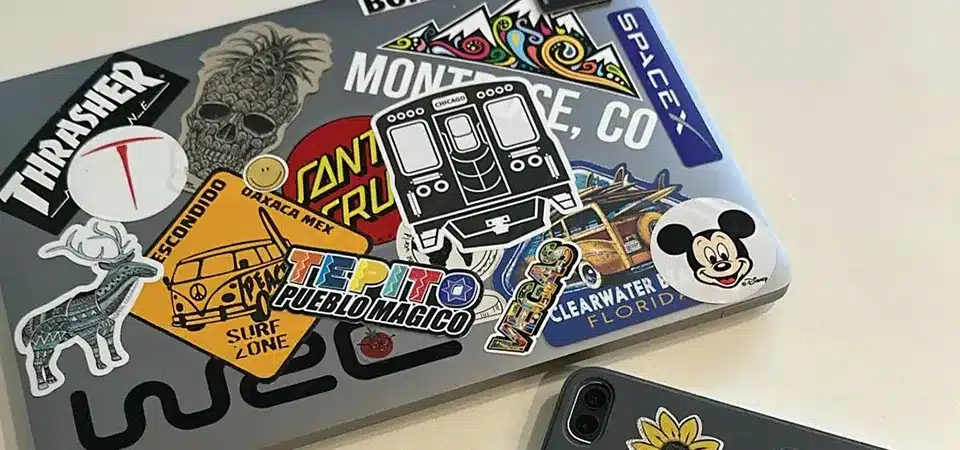
Arrangement is where your personality really shines. There is no "wrong" way, but there are definitely "better" ways. Before you commit, I suggest using small loops of painter's tape or Blue Tack to position the stickers on the lid without peeling the backing. Move them around until it feels right.
By Color
This is the easiest way to make a design look professional. Stick to a palette. If you have a lot of black and white stickers, stick to that theme. The high contrast looks incredibly sharp on a silver or gray laptop. Alternatively, you can do a warm-tone cluster (reds, oranges, yellows). When the colors match, the individual stickers feel like one big art piece.
By Size
Always start with the big guys. I call these "Anchor Stickers." Place your largest 2 or 3 designs first. They act as the focal points. If you put the small ones on first, you won't have room for the main attractions later. Once the big ones are set, use the smaller 2-inch stickers to fill the gaps between them.
By Shape
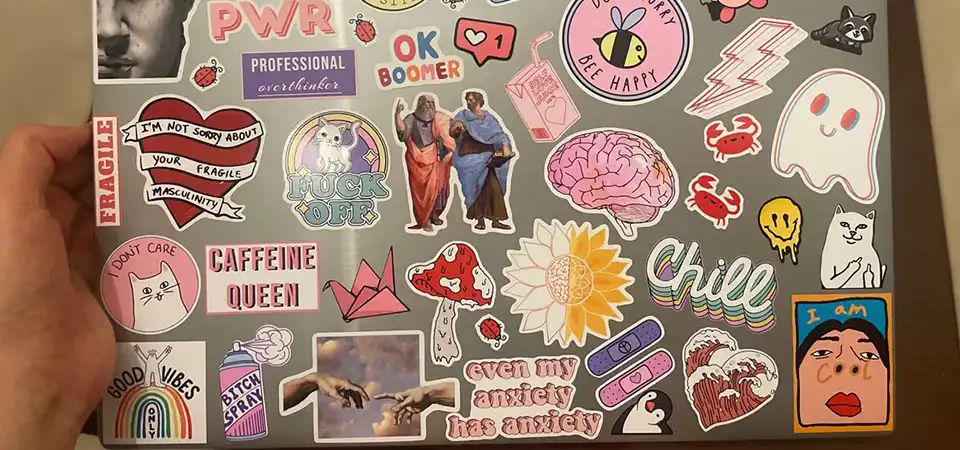
If you have square or rectangular stickers, they look best when aligned in a grid or parallel to the laptop edges. If you have "die-cut" stickers (shapes cut around the artwork), they look better in organic, overlapping clusters. This is often called "Sticker Bombing." This style involves overlapping the edges of stickers to cover the laptop skin completely.
Top tip
Don't be afraid of overlapping, but be careful with faces and text. It is okay to cover the boring background of one sticker with the edge of another, but try not to cover the main logo, the character's face, or the funny text that makes the sticker worth it. Layering adds depth and makes the arrangement look 3D.
Which way should laptop stickers face?
You are staring at your closed laptop and wondering: should the sticker face me, or should it face the person sitting across from me?
Laptop stickers should be applied facing "up" relative to the brand logo, meaning they will appear upside down to you when the laptop is closed, but upright to others when the lid is open. This orientation ensures that your designs are legible and visible to the world while you are using the device.
This is the "Toilet Paper Roll" debate of the sticker world (over or under?). But in my industry, there is a clear winner.
Think about the Apple logo on a MacBook. When the laptop is closed and the hinge is away from you, the apple is upside down. When you open the lid, the apple is right-side up. You should follow this same logic.
If you put the stickers facing you when the laptop is closed, they will be upside down to everyone else when you open it at a library or cafe. It looks awkward, like hanging a painting upside down. Since stickers are often about expression and showing off your interests to the world, you want the world to be able to read them.
Conclusion
Applying laptop stickers requires a clean surface, steady pressure, and a thoughtful layout plan; by facing them upright and avoiding functional vents, you ensure your customized device looks professional and the stickers last for years.