You're printing 10 copies of a 20-page report. You worry you'll have to manually sort every page into correct sets, which will take forever.
In printing, "collate" means to automatically arrange pages in the correct order as they are printed. When you print multiple copies of a multi-page document, collating gives you complete, ready-to-use sets (e.g., Pages 1-20, then Pages 1-20 again) instead of a stack of unsorted pages.
As someone who runs a sticker printing business, I deal with complex print jobs every day. The word "collate" might sound technical, but it’s one of the most useful and time-saving features in printing. It’s a small checkbox that makes a huge difference in efficiency. We rely on it for everything from booklet-style instructions to multi-sheet sticker sets. Understanding what it does and why it's important is key to getting professional results, whether you're printing at home or in a professional shop. Let's look at what it really is.
What is collating in printing?
You hit "print" for five copies of a document and get a stack of page ones, then a stack of page twos. Now you have a frustrating sorting job ahead.
Collating is the printer's function of assembling pages in their proper sequence. For multiple copies of a document, it prints one complete set (1, 2, 3), then a second complete set (1, 2, 3), and so on, until the job is done.
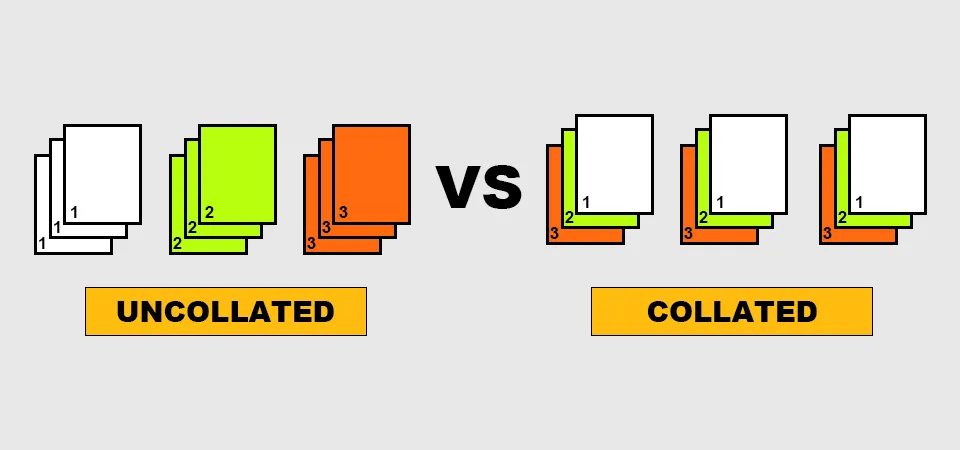
The easiest way to think about collating is to imagine you're assembling presentation handouts. Without collating, the printer gives you a stack of pages that are grouped by page number. With collating, the printer does the assembly work for you. It prints a full document from start to finish before it starts printing the next copy. This is a critical function in my business. For example, when a client orders 100 sets of a sticker pack with 10 different sheet designs, collating is essential. It means my printer outputs a complete set of 10 sheets, then the next set, and the next. The alternative—getting 100 copies of sheet #1, then 100 of sheet #2—would create a sorting nightmare.
Collated vs. Uncollated Printing
The difference is clearest when you see the final output.
| Print Setting | Page Order for 3 Copies of a 3-Page Document | End Result |
|---|---|---|
| Collated (On) | 1, 2, 3, 1, 2, 3, 1, 2, 3 | Three ready-to-use document sets |
| Uncollated (Off) | 1, 1, 1, 2, 2, 2, 3, 3, 3 | One stack of pages that needs manual sorting |
What are the benefits of collating for printing?
Manually sorting hundreds of pages is slow, tedious, and boring. It's so easy to make a mistake and create incomplete or mixed-up sets for an important meeting.
The main benefits of collating are massive time savings and much better accuracy. It completely removes the need for manual sorting, cuts down on human error, and ensures that every set of documents is complete and professional right from the printer.
In my print shop, efficiency is everything. Time is money, and any manual step we can automate saves us resources that we can use for more important quality checks. The benefits of collating really come down to three key areas.
Efficiency
This is the biggest benefit. Imagine we're printing 500 copies of a 10-page instruction booklet for one of our packaging products. If we print uncollated, we have 10 stacks of 500 pages each. It would take one of my team members hours to assemble them. By simply checking the "Collate" box, the printer does that work for us. That's a direct labor cost saving.
Accuracy
Humans make mistakes, especially with repetitive tasks like sorting paper. It's very easy to accidentally put two of the same page in one set or miss a page entirely. A client receiving an incomplete sticker set or a manual with a missing page reflects poorly on their brand and on my business. Machine collating is nearly foolproof. It guarantees that every single set is correct.
Professionalism
Showing up to a meeting with neatly ordered reports looks much better than sorting through a jumbled pile of papers in front of everyone. The same goes for products. When a customer opens a package, they expect a complete and orderly set of materials. Collating ensures that professional presentation every time.
How do you enable or disable collating?
You need to print a report, but you can't find the setting in the menu. The printer is spitting out pages in the wrong order, wasting your time and paper.
You can enable or disable collating in the print dialog box that appears right after you click "Print." Look for a checkbox simply labeled "Collate." Checking this box turns the feature on. Unchecking it turns it off.
This setting is usually easy to find, but it can be in a slightly different place depending on your computer's operating system and the software you're printing from.
Finding the Collate Option
- On Windows: After you click File > Print, the main print dialog box will appear. You will almost always see a "Collate" checkbox right next to the number of copies. If not, it might be in the "Printer Properties" or "Preferences" section.
- On macOS: The "Collate" checkbox is typically visible in the main print dialog box as soon as it opens. It's usually found directly under the "Copies" field. If the settings look limited, click the "Show Details" button at the bottom of the dialog box to reveal all options.
I always tell my team to double-check this box before starting any large print run. It’s a tiny detail that prevents a massive headache. a few years ago, a new team member forgot to check it when printing 500 sets of multi-page product labels. We ended up with stacks of thousands of individual labels. It took two people half a day to sort them by hand, a costly and frustrating mistake that could have been avoided by checking one box.
What happens if I don't collate?
You just printed 20 copies of a 50-page proposal without collating. Now you have a single giant, unusable stack of pages and your deadline is in one hour.
If you don't collate, the printer will print all copies of the first page, then all copies of the second page, and so on. This leaves you with stacks of pages sorted by page number (1,1,1..., 2,2,2..., 3,3,3...) that you must sort into sets by hand.
The output of an uncollated print job is organized, but it's organized in the opposite way you need for most documents. For example, if you print 4 copies of a 5-page report without collating, the pages will come out of the printer in this order:
1, 1, 1, 1
2, 2, 2, 2
3, 3, 3, 3
4, 4, 4, 4
5, 5, 5, 5
Now, you have to create your four reports by picking one page from each of the five stacks. It's a slow process that's prone to error.
When Would You Want to Print Uncollated?
Although it's less common, there are times when printing uncollated is actually useful. If you are printing single-page flyers, you might want them in one large stack. Another good example is if you are printing a document where different pages require different types of paper. For example, you might print all 100 copies of page 1 (the cover) on heavy cardstock. Then, you can load the printer with regular paper and print all 100 copies of pages 2, 3, and 4. This workflow is sometimes easier than collating and swapping paper. This is a technique we occasionally use in my shop for specific binding jobs.
Conclusion
Collating is a simple but powerful printer setting that saves time, prevents errors, and makes sure your multi-page documents are professional and ready to go.